
Light integration
Card partner API - light integration

In the Light workflow, company will typically express interest in using a card product within the partner interface (see below simple design wireframe for a visual example). Partner will then create the company entity via an API call to Mynt. After that the partner will populate users, with varying roles (see below for descriptions of these). Partner will then trigger an invitation email to each added users, which is required in order for the user to be able to complete the registration and log in.
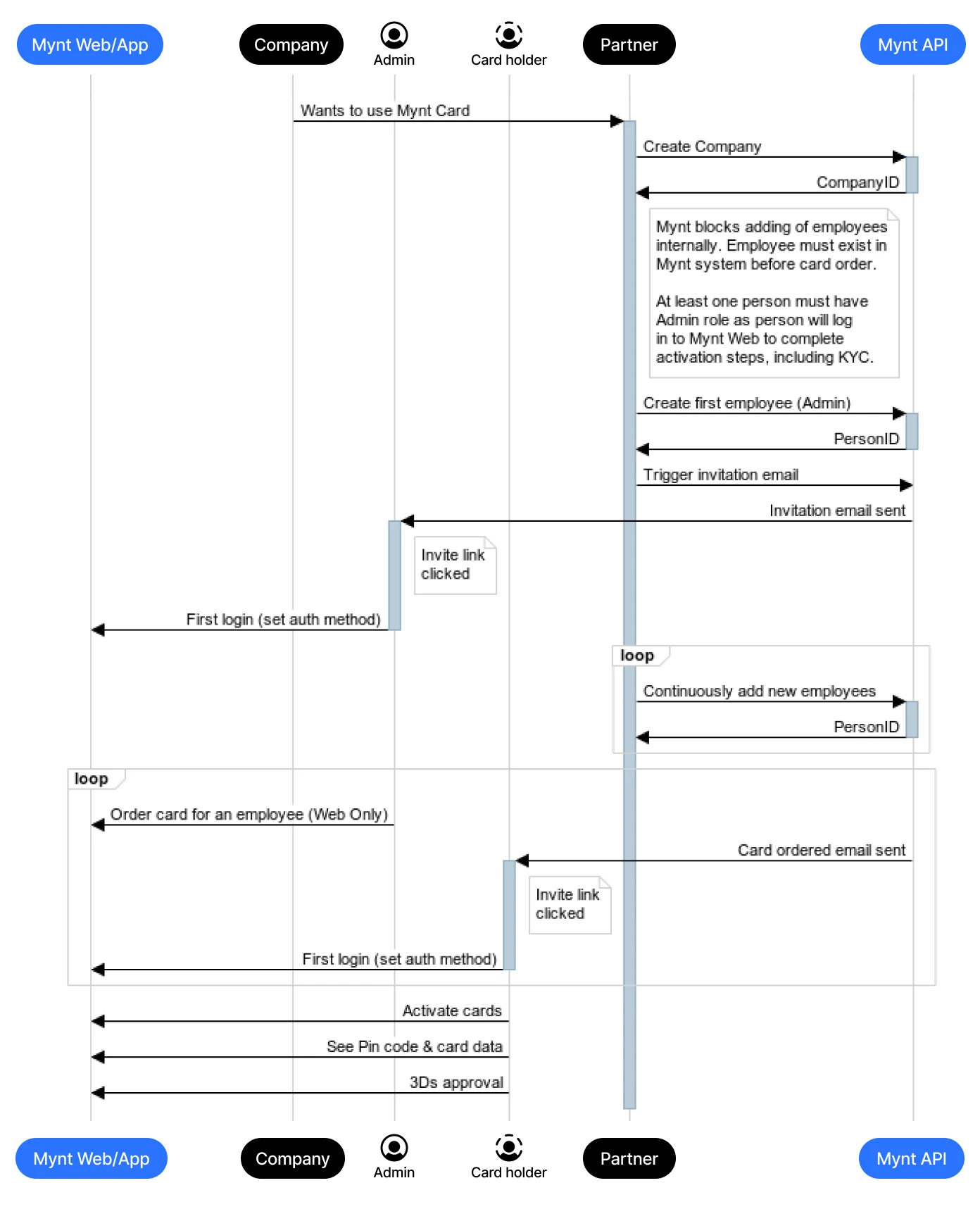
The user will then follow the email link to complete registration by configuring their chosen authentication method. User is then logged in to the Mynt web interface, and can use the same authentication method for accessing the Mynt mobile app.
Note that Mynt will block the ability to add new users from within the Mynt web interface, as these should be populated by the partner. This guarantees that users lists stay in sync. Note that tokenization (ApplePay and GooglePay) requires correct telephone number on the user entities.
Invitation email
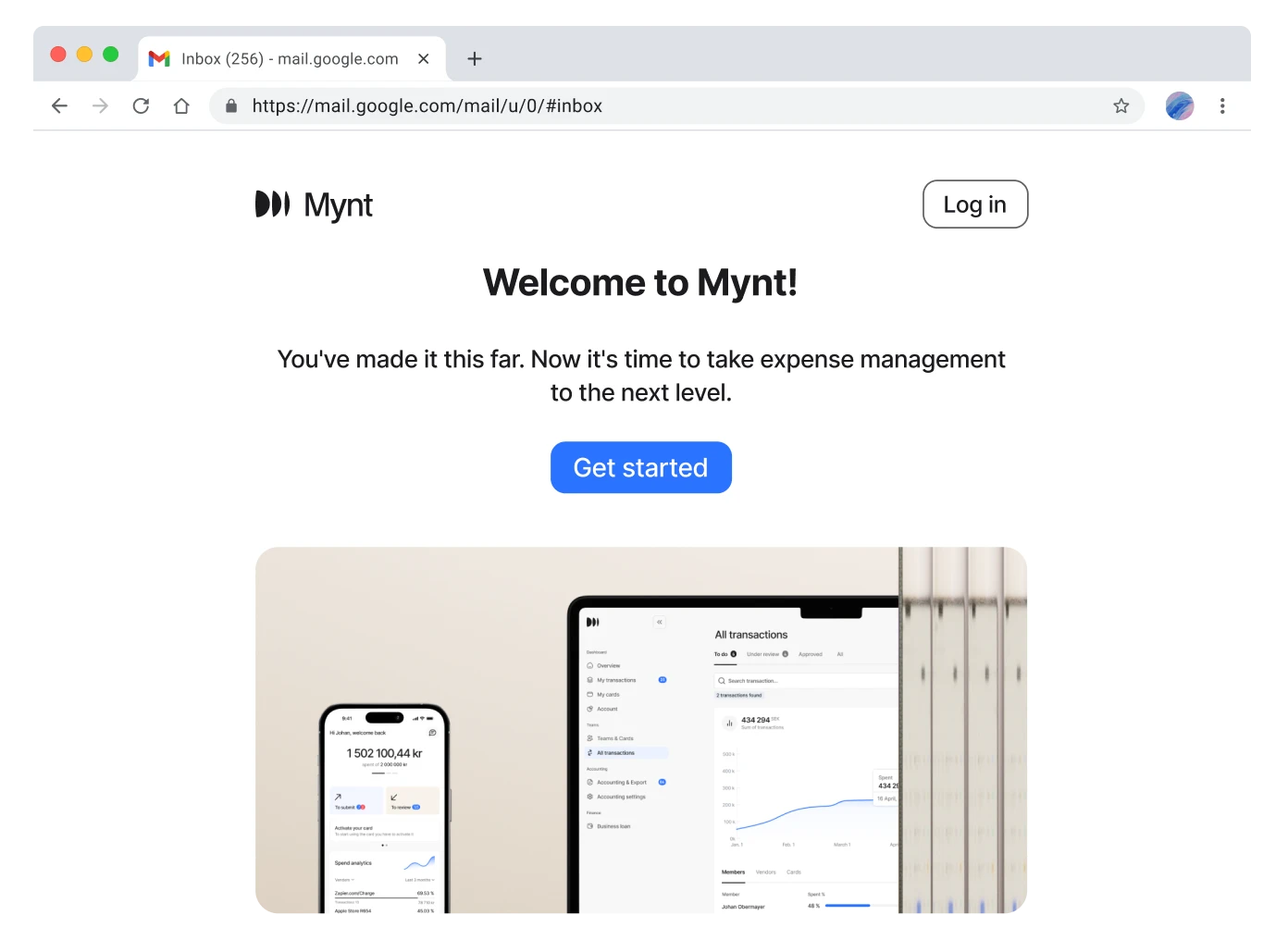
Below is the invitation email that the partner triggers Mynt to send to an added user. It can be triggered multiple times if needed.
User roles are defined as follows:
- CARD_HOLDER can have cards and purchase up to a set limit. They can only see their own transactions.
- ACCOUNTANT can see all transactions, but they can’t configure users, order cards, or have cards themselves. This is a relatively uninteresting role in the partner case, but can be useful in certain cases.
- ADMIN have complete access to all features. Admin can configure users, order cards, and see all transactions. Admins can also have a cards themselves.
- NONE is a role assigned in the unusual case where all others are removed, which is only possible for Mynt support and not through the API.
At least one of the users created during the initial company setup sequence needs to have the ADMIN role, as that user will be presented with an activation guide when they have been logged in to the Mynt web interface. The first ADMIN user will also be assigned to be a contact and receive company level notifications (see notifications summary further down). The contact user can be changed later by contacting Mynt support. See an example of the activation guide below. The user is asked to: complete the KYC questionnaire, add money or apply for credit, and order cards for the users. Note that the "Connect accounting system" step is automatically marked as completed.

When a user receives their physical card they can start making purchases given that there's an amount available to spend (either client funds or Mynt credit). Purchases are pushed to the partner via the transaction webhook. See the transaction data model for a summary of parameters. Partner must adapt their user interface and workflow to handle pushed card transactions. Note that 3Ds purchases must be approved by the user in the Mynt app when they arise.
Mynt provides endpoints for the current state for KYC process (NOT_STARTED, PENDING, APPROVED), credit application process. These may be helpful to show to the company in the partner interface. In the case the company is denied, Mynt will handle the communication directly with the company according to legal requirements.
Finally, please note that Mynt supports a wide range of events that trigger email notifications to the company and/or individual user. Company level notifications are sent to the contact person (by default the first ADMIN). Credit invoices and topup receipts are sent to the partner via webhooks, including reference to PDF document, so that these can be handled appropriately in an accounting context.
Onboarding flow
Below are the steps required to onboard a new company into using Mynt's card. After these steps are completed a person registered in the company can start using Mynt's card.

Transaction flow
Once a company and persons are onboarded, these are the steps that occur everytime a person performs a purchase
